
Code editor
CodeEditor is a multi-line text editor made for code. It’s the editor the
Tessel IDE is built with, and you can use it in your own apps.
app Editor(width: 440, height: 210) {    state source = "// A tiny counter\napp Counter \{\n    state count = 0\n\n    Button(\"Add\") \{ cuont += 1 }\n    Text(\"Count: \{count}\").font(weight: .bold)\n}\n"    state line = 1
    VStack(spacing: 8) {        CodeEditor(text: source, errorLines: [5], line: line)        HStack {            Text("Line {line}").color(.secondary)            Spacer()            Button("Go to error") { line = 5 }        }    }    .padding(12)}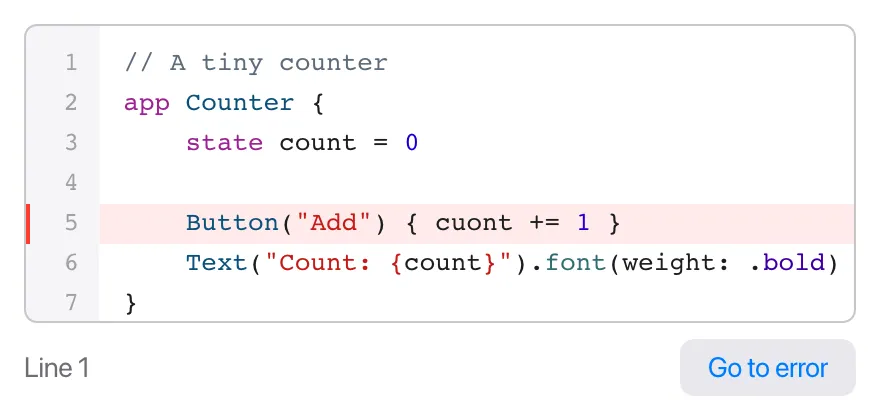
(The \{ in the string is an escaped brace, so that { isn’t read as
interpolation.)
Parameters
Section titled “Parameters”CodeEditor(text: source, errorLines: problems, line: currentLine)| Parameter | Type | What it does |
|---|---|---|
text: | bind String | The text being edited. Required. |
errorLines: | [Int] | Line numbers to mark as having errors. Optional; empty by default. |
line: | bind Int | The line the cursor is on. Optional. |
completions: | [Completion] | Suggestions to offer as the user types. Optional; see Code completion. |
completionStart: | Int | Where the word those suggestions are for starts (a byte offset in text). |
onComplete: | fn(Int) | Called when the editor wants suggestions, with the cursor’s byte offset. |
Line numbers start at 1, as they do in the gutter.
What it does
Section titled “What it does”- Line numbers in a gray gutter on the left.
- Syntax colors for Tessel: keywords, strings (with the
{…}parts inside them colored as code), numbers, comments, capitalized names like types and views, function calls, and.cases. The colors are always Tessel’s, whatever the text is. - A monospaced font at 13 points. Long lines don’t wrap.
- Scrolling. Scroll up and down with the mouse wheel or trackpad. The editor also scrolls by itself, in both directions, to keep the cursor in view as you type and move around.
- All the usual editing keys, including selection, the clipboard and undo; see Editing text.
- Indentation help:
- Enter starts the new line with the same indentation as the current one,
plus one more level (4 spaces) after a line ending in
{. - Tab inserts 4 spaces.
- Typing
}on a line that only has spaces so far removes one level of indentation.
- Enter starts the new line with the same indentation as the current one,
plus one more level (4 spaces) after a line ending in
Marking errors
Section titled “Marking errors”errorLines: takes a list of line numbers. Each one gets a light red background
and a red mark in the gutter. It’s an ordinary list, so it can come from
anything, typically from checking the text:
CodeEditor(text: doc.text, errorLines: problems.filter { p in p.file == doc.path }.map { p in p.line })The IDE gets its errors by running tessel check --format lines with
runCommand and parsing each line of
output.
Following and moving the cursor
Section titled “Following and moving the cursor”line: is a two-way binding to the
line the cursor is on:
- When the cursor moves (by typing, clicking or the arrow keys), the editor writes its line number into the bound value. The example above uses that to show “Line 5” under the editor.
- When your code changes the value, the editor puts the cursor at the start of that line, scrolls it into view, and starts editing, ready for the user to type.
That’s how you jump to an error: store the line in the bound value, for example when the user clicks an error in a list. Setting it to the line the cursor is already on does nothing, since nothing changed.
Code completion
Section titled “Code completion”The editor can offer suggestions as the user types, in a list under the word. You provide them; the editor decides when to ask, shows and filters them, and inserts the chosen one:
- When the user starts a word (or types
.), the editor callsonCompletewith the cursor’s position intext, as a byte offset. - Your code works out the suggestions, maybe in the background, and sets
completionsto a list ofCompletionvalues, andcompletionStartto the offset where the word starts. - The list shows while the cursor stays in that word, keeping only the
suggestions that match what’s typed so far. It only shows when
completionStartis where the current word starts, so a late answer for a word the user has moved on from never shows.
Completion is a built-in struct:
Completion(label: "count", detail: "Int", kind: "variable")labelis inserted in place of the word.detailis shown in gray on the right, like a type or a signature.kindpicks the little badge:"function","method","variable","field","view","modifier","type","case"or"keyword". Accepting a function, method, view or modifier also types((or()when itsdetailstarts with()).
While the list shows, Up and Down choose, Enter or Tab insert, and Escape closes it. Clicking a suggestion inserts it too. Enter on a suggestion that’s already typed in full just starts a new line.
A small example with a fixed list of words:
app Editor(width: 500, height: 300) {    state code = ""    state suggestions: [Completion] = []    state start = 0
    CodeEditor(text: code, completions: suggestions, completionStart: start, onComplete: { offset in suggest(offset: offset) })
    fn suggest(offset: Int) {        // The word starts after the last space or `.` before the cursor.        let chars = code.characters        var s = offset        for _ in 0..offset {            if s > 0 && chars[s - 1] != " " && chars[s - 1] != "." {                s -= 1            }        }        start = s        suggestions = ["count", "color", "print"].map { w in Completion(label: w, detail: "", kind: "variable") }    }}
(This counts characters, which equal bytes only for plain ASCII text. The
Tessel IDE asks tessel complete instead, which knows Tessel
and works in bytes.)
A CodeEditor is flexible: it takes all
the space it’s offered, in both directions. Give it a .frame(height:) (or
width:) to make it smaller, or put it next to fixed-size views in a stack.
Several editors
Section titled “Several editors”When editors are made in a for loop, as tabs in a
TabView for example, give each one an .id
so it keeps its own undo history, scroll position and cursor when files are
opened and closed. This is how the IDE shows its open files:
TabView(selection: current, onClose: { path in closeDoc(path: path) }) { for doc in docs { CodeEditor(text: doc.text, errorLines: errorLines(path: doc.path), line: doc.line) .id(doc.path) .tabItem(doc.name) .tag(doc.path) }}.autofocus() works on a code editor too: it starts editing as soon as the
editor appears.
Pasting keeps line breaks (Windows line endings become plain \n). In a
one-line TextField, pasted line breaks become spaces instead.