
19. Your first app with a window
Everything so far has run in the terminal. Most programs people use every day have windows instead, with buttons to click and fields to type in. In Tessel, making one takes only a few more ideas than you already know.
In this lesson you’ll learn:
- how an
appreplacesfn main - what views are, and how
Text,Button,VStackandHStackbuild a window - how
statemakes the window change, and why you never redraw anything yourself - how a
TextFieldedits a value through a binding - how to check an app without opening its window
You’ll build a counter, then a tip calculator.
From fn main to app
Section titled “From fn main to app”A terminal program starts at fn main, runs from top to bottom, and ends.
A program with a window starts with an app instead:
app Hello(title: "Hello", width: 320, height: 200) { Text("Hello, window!")}Save it as hello.tsl and run it the usual way:
tessel run hello.tslA window opens, 320 by 200 points, with “Hello, window!” in the middle and “Hello” in its title bar. The program keeps running until you close the window. (A point is the unit for sizes on screen; on most screens today, one point is two pixels.)
A program has either an app or a fn main, never both.
Everything you see in a window is made of views. Text is a view that
shows some text. Button is a view you can click. And some views hold other
views and arrange them:
VStackstacks views vertically, one under the other.HStackputs them side by side, horizontally.
app Stacks(width: 360, height: 240) { VStack(spacing: 8) { Text("Top") HStack(spacing: 8) { Text("Left") Text("Middle") Text("Right") } Text("Bottom") }}This shows “Top”, then a row with “Left Middle Right”, then “Bottom”.
spacing: 8 is the gap between the views, in points. You build a whole
window like this: views inside stacks, inside other stacks. The
Layout page shows everything stacks can do.
You change how a view looks with modifiers, written after it with a
dot. A line that starts with . continues the line above:
Text("Welcome") .font(size: 24, weight: .bold) .color(.blue) .padding(12).font changes the size and weight of the text, .color its color, and
.padding adds space around it. All the modifiers are listed in the
modifiers reference.
State: a counter
Section titled “State: a counter”A window that never changes is not very useful. Here is a counter, with a number and two buttons:
app Counter(width: 320, height: 200) {    state count = 0
    VStack(spacing: 12) {        Text("Count: {count}")            .font(size: 32, weight: .bold)
        HStack(spacing: 8) {            Button("-") { count -= 1 }            Button("+") { count += 1 }        }    }}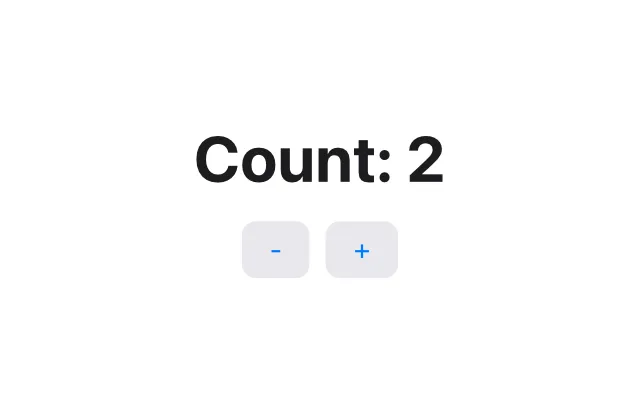
Two new things:
state count = 0declares a value that belongs to the app and can change while it runs. It’s like avar, but for an app.Button("+") { count += 1 }shows a button. The block after it is the button’s action: the code that runs when you click it.
Click + and the number goes up. But look at the code again: nowhere does
it say “now change the text on the screen”. The action only changes
count. So how does the text know?
You describe, Tessel draws
Section titled “You describe, Tessel draws”This is the big idea behind apps in Tessel. The body of the app is not a
list of steps to run once. It’s a description of what the window shows,
for the current state. It says: “there’s a text that reads Count:
followed by the count, and two buttons under it.”
Whenever the state changes (after a click, say), Tessel runs the body again with the new values, gets a fresh description, and updates the window to match. You never add, remove or redraw things yourself. You change the state, and the window follows.
This style is called declarative: you declare what should be on screen, not how to change it. It makes a whole kind of bug impossible: the window can never show an old value, because it’s always built from the current ones.
It also means the body can use if, for and everything else you know,
to decide what to show:
if count > 10 { Text("That's a lot!")}When count goes past 10, the text appears. When it drops back, it
disappears. There’s no code to show or hide it.
One rule follows from this: the body only describes. It runs every time anything changes, so it must not change things itself. Changes happen in actions, like a button’s block, or in functions that actions call.
Typing text: TextField and bindings
Section titled “Typing text: TextField and bindings”A TextField is a box to type in. Here’s a program that greets you by
name:
app Greeter(width: 360, height: 200) {    state name = ""
    VStack(spacing: 12) {        TextField("Your name", text: name)        if name.isEmpty {            Text("Hello! What's your name?")        } else {            Text("Hello, {name}!")                .font(size: 24, weight: .bold)        }        Text("{name.count} letters")            .color(.secondary)    }    .padding(20)}
"Your name" is the placeholder, shown in gray while the field is empty.
The interesting part is text: name.
Normally, when you pass a value to a function, it gets a copy. A text field
can’t work with a copy: it needs to change name every time you type a
letter. So TextField’s text: parameter is a binding: instead of a
copy, it gets access to the name state itself. Type a letter, and name
changes, and (because it’s state) the greeting and the letter count update
right away.
You don’t write anything special to pass a binding: text: name is
enough, because TextField declares that parameter as a binding. You’ll
write views with bindings of your own in the next lesson.
Checking an app without opening it
Section titled “Checking an app without opening it”With a terminal program, you can see the output. With an app, you’d have to
click around by hand to check it still works. Tessel has a better way:
every app can run headless, without a window, following a script of
clicks and key presses. Set the TESSEL_SCRIPT environment variable to the
script:
TESSEL_SCRIPT='tree; click "Your name"; type Ada; tree' tessel run greeter.tslRoot View VStack TextField "Your name" = "" Text "Hello! What's your name?" Text "0 letters"Root View VStack TextField "Your name" = "Ada" Text "Hello, Ada!" Text "3 letters"The commands are separated by ;. tree prints every view in the window,
indented to show which view is inside which. click "Your name" clicks the
view with that label (here, the field with that placeholder), and
type Ada types into it. When the script ends, so does the app.
The tree shows exactly what you’d see: after typing, the field holds
"Ada", and the texts have changed. View stands for the body of your
app. Testing your UI lists all the script commands.
Worked example: a tip calculator
Section titled “Worked example: a tip calculator”Let’s put it together. The tip calculator takes the amount of a restaurant bill, lets you choose a tip of 10, 15 or 20 percent and the number of people, and shows what each person pays.
app TipCalculator(title: "Tip calculator", width: 360, height: 320) {    state bill = ""    state percent = 15    state people = 1
    VStack(spacing: 12, alignment: .leading) {        Text("Tip calculator")            .font(size: 22, weight: .bold)
        TextField("Bill amount", text: bill)
        Picker(selection: percent) {            Text("10%").tag(10)            Text("15%").tag(15)            Text("20%").tag(20)        }
        HStack(spacing: 8) {            Text("People: {people}")            Button("-") { removePerson() }            Button("+") { people += 1 }        }
        Divider()
        if let amount = Float(bill.trim()) {            let tip = amount * Float(percent) / 100.0            let total = amount + tip            Text("Tip: {money(tip)}")            Text("Total: {money(total)}")            Text("Each person pays: {money(total / Float(people))}")                .font(size: 18, weight: .bold)        } else {            Text("Type the amount of the bill.")                .color(.secondary)        }    }    .padding(20)
    fn removePerson() {        if people > 1 {            people -= 1        }    }
    fn money(_ value: Float) -> String {        value.formatted(decimals: 2)    }}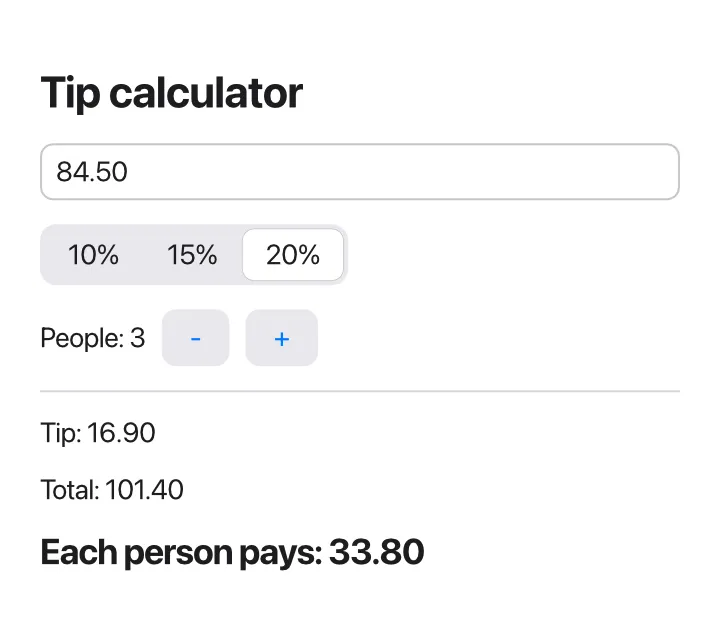
Let’s go through it:
- Three pieces of state: the bill as typed (a
String, because a text field edits text), the tip percentage, and the number of people. alignment: .leadinglines the views up on the left, instead of centering them.- A
Pickershows a few options side by side. Itsselection:is a binding, like the text field’stext:: clicking20%setspercentto that option’s.tag, which is20. - The
-button calls a function inside the app,removePerson. Functions declared in the app can change its state, which keeps longer actions out of the view code. It stops at one person: you can’t split a bill between zero people. (Dividing by zero here would giveinf, not a useful answer.) - The bill is text, and the user could type anything, so
Float(…)returns an optional.if letshows the results only when the text is a number, and a hint otherwise. letin the body names values that are used more than once, liketipandtotal. They’re computed fresh each time the body runs, so they’re always up to date.Divider()draws a thin line.
Check it, and try it headless: type a bill, choose 20%, and add two people.
tessel check tip.tslok: 1 file checked, no errorsTESSEL_SCRIPT='click "Bill amount"; type 84.50; click "20%"; click "+"; click "+"; tree' tessel run tip.tslRoot View VStack Text "Tip calculator" TextField "Bill amount" = "84.50" Picker Text "10%" Text "15%" Text "20%" HStack Text "People: 3" Button "-" Button "+" Divider Text "Tip: 16.90" Text "Total: 101.40" Text "Each person pays: 33.80"20% of 84.50 is 16.90, the total is 101.40, and a third of that is 33.80.
Then run it for real with tessel run tip.tsl, and play with it: every
key you type updates the results at once.
Common mistakes
Section titled “Common mistakes”Changing a value in the body
Section titled “Changing a value in the body”The body describes the window; it can’t change things while doing so:
app Counter(width: 320, height: 200) {    state count = 0
    Text("Count: {count}")    count += 1}
error: views can't change values while they're being built --> main.tsl:5:5 |5 | count += 1 | ^^^^^^^^^^ | = help: change values in an action instead, like `Button("Add") { count += 1 }`Using var instead of state
Section titled “Using var instead of state”A var would be created afresh every
time the body runs, so it couldn’t remember anything. Tessel doesn’t allow
it:
app Counter(width: 320, height: 200) {    var count = 0
    Text("Count: {count}")    Button("+") { count += 1 }}
error: `var` can't be used while building a view --> main.tsl:2:5 |2 | var count = 0 | ^^^^^^^^^^^^^ | = help: use `let` here, or `state` at the top of the view for values that changeThe help says exactly what to do: values that change are declared with
state, at the top of the app or view.
Passing a value where a binding is needed
Section titled “Passing a value where a binding is needed”A text field needs something
it can change, like a state:
TextField("Your name", text: "name")error: `TextField`'s `text:` needs something it can change --> main.tsl:4:34 |4 | TextField("Your name", text: "name") | ^^^^^^ this is a value, not a variable | = help: pass a `state` or `var`, or a field of oneHere the quotes turned name into a fixed piece of text. Write
text: name.
Forgetting that typed text might not be a number
Section titled “Forgetting that typed text might not be a number”Float(bill) is an
optional, so you can’t do arithmetic with it directly:
Text("Tip: {Float(bill) * 0.15}")error: can't use `*` on `Float?` and `Float` --> main.tsl:5:17 |5 | Text("Tip: {Float(bill) * 0.15}") | ^^^^^^^^^^^^^^^^^^ | = help: one side might be `nil`: give it a default with `??` (like `count ?? 0`), or unwrap it with `if let`Use if let, as the tip calculator does, or a default:
(Float(bill) ?? 0.0) * 0.15.
Exercises
Section titled “Exercises”1. A better counter. Add a Reset button to the counter that sets
the count back to 0. Then stop the count from going below zero, by
disabling the - button at 0 with the .disabled(…) modifier, which takes
a Bool. Check it with a script.
Solution
app Counter(width: 320, height: 200) {    state count = 0
    VStack(spacing: 12) {        Text("Count: {count}")            .font(size: 32, weight: .bold)
HStack(spacing: 8) { Button("-") { count -= 1 } .disabled(count == 0) Button("+") { count += 1 } Button("Reset") { count = 0 } } }}TESSEL_SCRIPT='click "+"; click "+"; tree; click "Reset"; click "-"; tree' tessel run counter.tslRoot View VStack Text "Count: 2" HStack Button "-" Button "+" Button "Reset"Root View VStack Text "Count: 0" HStack Button "-" disabled Button "+" Button "Reset"After Reset, the - button is disabled, so clicking it does nothing: the
count stays at 0.
2. A temperature converter. Make an app with a text field for a temperature in degrees Celsius, which shows it in degrees Fahrenheit (multiply by 9, divide by 5, add 32), with one decimal. When the text isn’t a number, show a hint instead.
Solution
app Converter(width: 320, height: 200) {    state celsius = ""
VStack(spacing: 12) { TextField("Degrees Celsius", text: celsius) if let c = Float(celsius.trim()) { let f = c * 9.0 / 5.0 + 32.0 Text("{c.formatted(decimals: 1)} °C is {f.formatted(decimals: 1)} °F") } else { Text("Type a temperature.") .color(.secondary) } } .padding(20)}TESSEL_SCRIPT='click "Degrees Celsius"; type 21.5; tree' tessel run converter.tslRoot View VStack TextField "Degrees Celsius" = "21.5" Text "21.5 °C is 70.7 °F"3. Round up. Nobody wants to pay 33.80 in coins. Add a Toggle (an
on/off switch) labeled “Round up” to the tip calculator:
Toggle("Round up", isOn: roundUp), where roundUp is a Bool state.
When it’s on, round each person’s share up to a whole number with
ceil(…).
Solution
Add state roundUp = false next to the other state, the toggle before the
Divider():
Toggle("Round up", isOn: roundUp)and replace the line that shows each person’s share with:
let share = total / Float(people) let pays = if roundUp { ceil(share) } else { share } Text("Each person pays: {money(pays)}")With the same clicks as before, plus click "Round up", the last line of
the tree reads:
Text "Each person pays: 34.00"4. A guessing game. The app picks a secret number from 1 to 100 with
random(1..101) (as a state’s starting value). The user types a guess and
clicks Guess (or presses Enter: add .onSubmit { check() } to the text
field). The app says “too low”, “too high”, or that it was right, and counts
the tries. A New game button starts over.
Solution
app Guess(width: 360, height: 220) {    state secret = random(1..101)    state guess = ""    state message = "I'm thinking of a number from 1 to 100."    state tries = 0
    VStack(spacing: 12) {        Text(message)        HStack(spacing: 8) {            TextField("Your guess", text: guess)                .onSubmit { check() }            Button("Guess") { check() }        }        Text("Tries: {tries}")            .color(.secondary)        Button("New game") { newGame() }    }    .padding(20)
    fn check() {        if let number = Int(guess.trim()) {            tries += 1            if number < secret {                message = "{number} is too low."            } else if number > secret {                message = "{number} is too high."            } else {                message = "Yes! It was {secret}. You needed {tries} tries."            }        } else {            message = "Please type a whole number."        }        guess = ""    }
    fn newGame() {        secret = random(1..101)        tries = 0        message = "I'm thinking of a number from 1 to 100."    }}
The number is random, so each run is different. One run:
TESSEL_SCRIPT='click "Your guess"; type 50; click "Guess"; tree' tessel run guess.tslRoot View VStack Text "50 is too low." HStack TextField "Your guess" = "" Button "Guess" Text "Tries: 1" Button "New game"Which algorithm from lesson 17 finds the number in at most 7 guesses?
Summary
Section titled “Summary”- A program with a window starts with
app Name(title:width:height:)instead offn main, and runs until the window is closed. - A window is made of views:
Text,Button,TextField,Picker, arranged withVStackandHStack. Modifiers like.fontand.paddingchange how they look. stateholds values that change. Buttons change state in their action blocks.- The body describes the window for the current state. When state changes, Tessel runs the body again and updates the window: you never redraw anything yourself.
- A binding lets a control change your state directly:
TextField("…", text: name),Picker(selection: percent). TESSEL_SCRIPT='click "+"; tree' tessel run app.tslruns an app without a window and prints what’s on screen.- For more, see Your first app, Apps and views, State and bindings and Controls.