
Apps and views
A Tessel program with a window starts with an app. Everything you see in the
window is made of views: small building blocks like Text, Button and
VStack that you combine into bigger ones.
app Greeter(title: "Greeter", width: 360, height: 200) {    state name = ""
    TextField("Your name", text: name)    Text(greeting())
    fn greeting() -> String {        if name == "" { "Hello!" } else { "Hello, {name}!" }    }}
This page explains each part of that program.
The app declaration
Section titled “The app declaration”app gives your program a name and opens its main window. The arguments in
parentheses are all optional:
| Argument | Type | Default | What it does |
|---|---|---|---|
title: | String | the app’s name | The text in the window’s title bar. |
width: | Float | 640 | The window’s starting width, in points. |
height: | Float | 480 | The window’s starting height, in points. |
appearance: | Appearance | .system | .light or .dark to always look that way. See Light and dark. |
If you give more than one, write them in that order: title:, width:,
height:, appearance:. You can also leave the parentheses out entirely:
app Hello { Text("Hello, world!")}A program has exactly one entry point: either one app or one fn main()
(for programs without a window). See Programs and files.
The body
Section titled “The body”Everything between the braces of the app is its body. The body can contain:
- views, like
Text("Hello")orVStack { … }, which are shown in the window; statedeclarations, the values that can change while the app runs (see State and bindings);- functions declared with
fn, which can read and change that state; letconstants,if,forandmatch, to decide which views to show (see Lists and conditions).
The views in a body are stacked from top to bottom, 8 points apart, like a
VStack. The whole body is centered in the window.
The body describes what the window should look like right now. You never add or remove views by hand: when state changes, Tessel runs the body again and updates the window to match.
Views are building blocks
Section titled “Views are building blocks”A view is a value that describes something on screen. Tessel has built-in views for text, controls and layout:
| View | What it shows |
|---|---|
Text("…") | A line (or paragraph) of text. See Text and styling. |
Button("…") { … } | A push button that runs an action. See Controls. |
TextField("…", text: …) | A one-line text input. |
Toggle("…", isOn: …) | An on/off switch. |
Picker(selection: …) { … } | A segmented control for picking one option. |
VStack, HStack, ZStack | Arrange views vertically, horizontally, or on top of each other. See Layout. |
Spacer(), Divider() | Empty stretchy space, and a thin separator line. |
Scroll { … } | A vertically scrolling area. |
TabView(selection: …) { … } | Tabs. See Tabs. |
Icon(.name), Svg("…"), Image("…") | Icons and drawings. See Icons, SVG and images. |
CodeEditor(text: …) | A multi-line code editor. See Code editor. |
You change how a view looks with modifiers, which you chain after it with a dot:
Text("Welcome") .font(size: 24, weight: .bold) .color(.blue) .padding(12)The full list is in the modifiers reference.
Your own views
Section titled “Your own views”When part of your UI gets big, or you need it more than once, give it a name
with view. A view declaration looks like a function: a name, parameters, and
a body that works exactly like the app’s body.
view Badge(label: String, color: Color = .blue) {    Text(label)        .font(size: 12, weight: .semibold)        .color(.white)        .padding(horizontal: 8, vertical: 3)        .background(color, radius: 8)}
app Labels(width: 320, height: 200) {    HStack(spacing: 6) {        Badge(label: "new")        Badge(label: "urgent", color: .red)    }}
You show a custom view by calling it, just like a built-in one. Parameters
work like function parameters: arguments are passed by
label, parameters can have default values (color: Color = .blue), and a
parameter declared with _ is passed without a label. A view without
parameters can leave out the parentheses in its declaration:
view Header { Text("My App").font(size: 20, weight: .bold)}You still call it with parentheses: Header().
Views can also have their own state and bind parameters; see
State and bindings.
Views that take other views
Section titled “Views that take other views”A parameter of type View accepts any view, including a whole block of them.
Show it by writing the parameter’s name in the body. If it’s the last
parameter, the caller can pass it as a trailing block after the parentheses,
the same way you give a VStack its content:
view Card(title: String, content: View) {    VStack(spacing: 6, alignment: .leading) {        Text(title).font(size: 16, weight: .bold)        content    }    .padding(12)    .frame(width: 240, alignment: .leading)    .background(.sidebar, radius: 8)}
app Planner(width: 300, height: 200) {    Card(title: "Today") {        Text("3 tasks left")        Text("Next: write the docs").color(.secondary)    }    Card(title: "Tomorrow") {        Text("Nothing planned yet").color(.secondary)    }}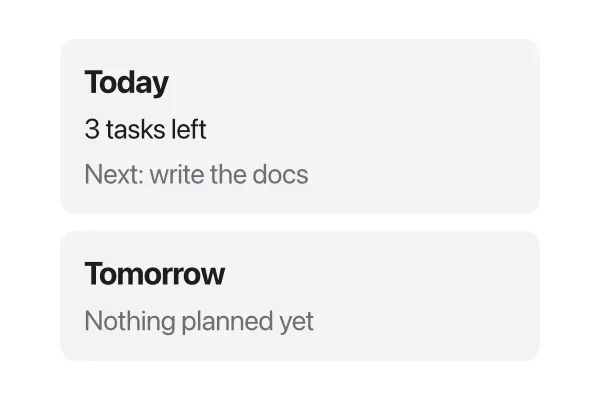
A trailing block also works for a last parameter that is a function, which is how you make a view with an action, like a button:
view ToolButton(icon: IconName, label: String, action: fn()) {    HStack(spacing: 5) {        Icon(icon)        Text(label)    }    .padding(6)    .hoverBackground(.lightGray, radius: 6)    .onTap { action() }}
app Toolbar(width: 320, height: 120) {    state saves = 0
    ToolButton(icon: .save, label: "Save") { saves += 1 }    Text("Saved {saves} times")}
Tessel decides whether a trailing block is content (views) or an action (code to run) from the type of the parameter it fills, so both look the same at the call site.
Views in functions
Section titled “Views in functions”A function can also return a View. That’s handy for a small piece of UI that
doesn’t need parameters with labels or its own state:
fn tag(_ text: String) -> View {    Text(text).padding(4).background(.lightGray, radius: 4)}
app Tags {    HStack {        tag("swift")        tag("tessel")    }}
Struct fields can’t hold views, though: store the data, and build the view from
it in a view or function.
Functions inside apps and views
Section titled “Functions inside apps and views”Functions declared inside an app or view body belong to it. They can read
and change its state and bind parameters, and read its other parameters,
so they’re the natural place for the work your buttons do:
app Counter(width: 300, height: 160) {    state count = 0
    HStack {        Button("-") { change(by: -1) }        Text("{count}").font(size: 24)        Button("+") { change(by: 1) }    }
    fn change(by: Int) {        count += by        if count < 0 {            count = 0        }    }}
They can also compute values the body shows, like greeting() at the top of
this page. Declare them directly in the body (not inside a VStack or other
block); where in the body they go doesn’t matter.
Such a function can also be passed as a value, wherever a function is
expected: to a button’s action:, to a callback like runCommand’s
onOutput:, or to a parameter of your own view. Here the row’s toggle
function uses the view’s parameters, and the app passes its picked function
on as onPick:
struct Task {    title: String    done: Bool = false}
view TaskRow(task: bind Task, label: String, onPick: fn(String)) {    fn toggle() {        task.done = !task.done        onPick(label)    }
    HStack(spacing: 8) {        Text(task.title)        Button(if task.done { "Undo" } else { "Done" }, action: toggle)    }}
app Tasks(width: 320, height: 200) {    state tasks = [Task(title: "Write"), Task(title: "Test")]    state last = ""
    fn picked(_ label: String) {        last = label    }
    for i in 0..tasks.count {        TaskRow(task: tasks[i], label: "task {i + 1}", onPick: picked)    }    Text("Last changed: {last}")}
A function inside a view always sees the view’s latest arguments, even when it runs later, for example from a button click.
Functions declared at the top level of a file, outside any view, work everywhere but can’t see a view’s state; pass them what they need as arguments.
Running code when a view appears
Section titled “Running code when a view appears”.onAppear { … } runs a block when a view first shows up: when the app
starts, or later when an if or for starts showing it. It’s the usual place
to load data:
app Notes(width: 400, height: 300) {    state text = ""
    VStack {        TextField("Notes", text: text)        Button("Save") { writeFile(path: "notes.txt", text: text) }    }    .onAppear {        text = readFile("notes.txt") ?? ""    }}
The block runs once per appearance, not on every rebuild. If the view goes away
(an if stops showing it) and comes back, it runs again. It may change state;
the window is then rebuilt with the new values.